
Direct Answer: How to Automatically Rollback Broken WordPress Plugin Updates
There is no native WordPress feature that automatically rolls back plugins after a broken update causes critical errors. However, you can use specialized rollback WordPress plugins or implement automated monitoring combined with fallback procedures to restore the previous stable version of a plugin instantly. This tutorial explains practical ways to set up automatic rollback for plugin updates, minimizing downtime and restoring site stability without manual intervention.
Prerequisites and Safety Checks Before Implementing Rollbacks
- Recent Backup: Ensure you have a full backup of your WordPress site and database before making any changes or testing rollback mechanisms. Backup plugins like UpdraftPlus or BackWPup are helpful.
- Staging Environment: Test plugin updates and rollback setups on a staging or development site before applying on production.
- Access to Hosting Control Panel or FTP: You must have file access in case a rollback plugin or process fails and manual restoration is needed.
- WordPress Version Compatibility: Confirm your WordPress version supports rollback plugins or scripts you intend to use.
- Plugin Storage Permissions: File system permissions must allow rollback tools to write/delete plugin files.
Step-by-Step Guide to Setting Up Automatic Plugin Rollbacks
- Install a Plugin Rollback Tool
Several WordPress plugins enable manual rollback, like WP Rollback. However, for automatic rollback, consider plugins or tools that monitor failures and revert automatically. Most common approach is combining failure detection with scripted rollbacks.
- Implement Failure Detection Mechanisms
Install and configure uptime monitoring and error notification plugins such as WP Health or configure custom Error logging through
wp-config.php(enableWP_DEBUGandWP_DEBUG_LOG) to detect critical errors triggered by plugin updates. - Configure Automatic Rollback Scripts
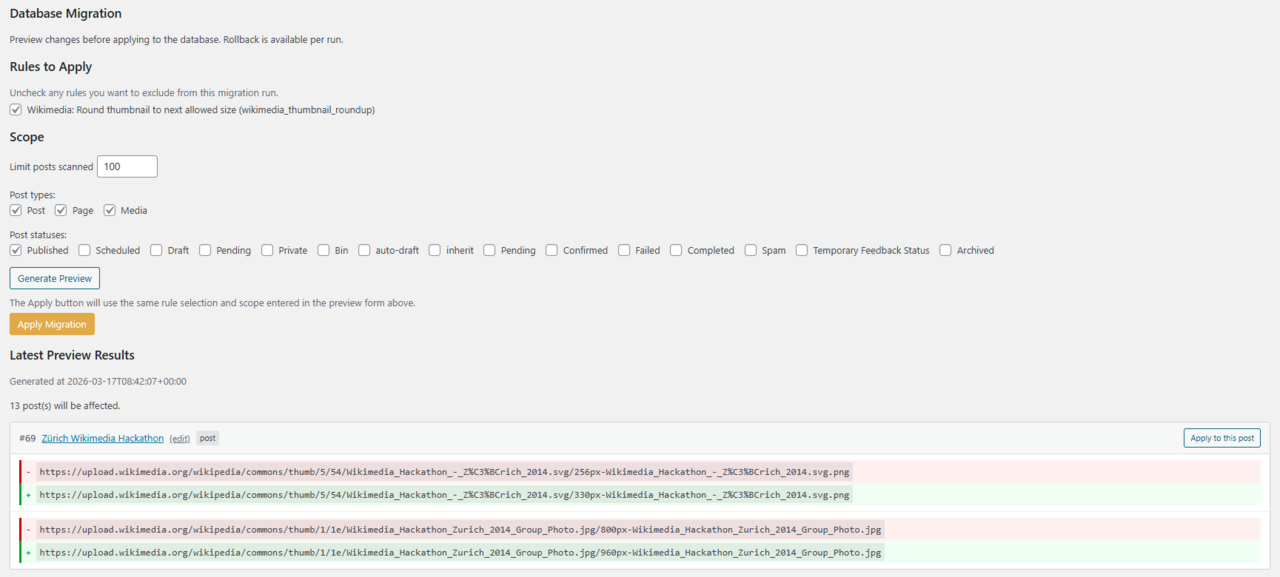
Create a script on your server that listens for critical WordPress errors or failed health checks. On detection, this script uses WP-CLI commands to rollback or reinstall the previous stable plugin version.
# Example of using WP-CLI to rollback a plugin to a specific version
wp plugin install plugin-slug --version=1.2.3 --force
Or use backups of the plugin folder to restore previous plugin states.
- Schedule Rollback & Monitoring Automation
Set up cron jobs or a continuous monitoring service to check site health post-update and trigger rollback on failure detection.
- Test the Process
Simulate a broken plugin update on staging and verify that the automated process detects the failure and initiates rollback without manual action.
- Notify Site Admins
Ensure notifications (email or SMS) are sent when rollback occurs to keep admins aware.
Concrete Examples of Rollback Automation with WP-CLI
Using WP-CLI plugin commands you can rollback plugins by:
# Check installed plugin with version
wp plugin list

# Rollback to previous stable version (e.g., version 1.3.2)
wp plugin install plugin-slug --version=1.3.2 --force

# Reactivate plugin after rollback
wp plugin activate plugin-slug
This can be wrapped in shell scripts triggered by monitoring hooks.
Verification of Successful Rollback and Site Stability
- Check WordPress admin dashboard for absence of critical error messages.
- Visit front-end pages to confirm normal site loading.
- Verify plugin version via WP-CLI or plugin info screen matches rollback target.
- Check error logs (
wp-content/debug.log) for no new fatal errors. - Confirm monitoring service reports site as healthy.
Common Mistakes to Avoid
- No Backups: Always backup before enabling automated updates and rollback tools to avoid data loss.
- Skipping Testing: Do not deploy rollback automation without thorough testing on non-production sites.
- Incorrect Versions: Rolling back to incompatible plugin versions can break functionality. Validate version compatibility.
- Ignoring Dependencies: Some plugins depend on others; rolling back one plugin without others might cause conflicts.
- Missing Notifications: Without alerts on rollback, site owners stay unaware of issues and fixes.
Useful Alternatives and Enhancements
- Managed WordPress Hosting: Many hosts offer built-in automatic restore points or plugin management that prevents critical update errors.
- Staging Environments: Configure staging sites to automatically update plugins first, and only push to production if tests pass.
- Plugin Update Automation Tools: Use update management plugins (e.g., ManageWP) that optionally hold updates for manual review.
- Custom Monitoring Services: Integrate third-party uptime services (Pingdom, UptimeRobot) with webhook-triggered rollback scripts.
FAQs About Automatic Rollback of WordPress Plugins
Q: Does WordPress have a built-in automatic rollback feature?
A: No, WordPress currently does not provide native automatic rollback for plugins after failed updates.
Q: Are there plugins that automatically rollback broken updates?
A: There are rollback plugins for manual rollback, but fully automatic rollback requires combining failure detection and scripts or third-party management tools.
Q: Can automatic rollback cause data loss?
A: There is a risk if plugin versions change database structures. Always backup before updates and test rollback carefully.
Q: How can I detect a plugin update caused a critical error?
A: Enable WordPress debug logging, monitor error logs, or use health check plugins and uptime monitors to detect site failures soon after plugin updates.
Q: What if rollback fails or site remains broken?
A: Maintain manual backup restoration or contact your hosting provider for help. Also, review error logs to identify the root cause.
Troubleshooting Edge Cases During Automatic Rollbacks
Despite setting up an automatic rollback system, various edge cases and challenges can arise. Here are some troubleshooting tips for common problems:
- Rollback Fails to Reactivate Plugin: Sometimes the rollback command may reinstall the previous plugin version but not reactivate it automatically. Check with WP-CLI
wp plugin activate plugin-slug. If activation fails, check dependencies and error logs to identify blocking issues. - Plugin Database Schema Mismatch: If a plugin update altered the database schema, rolling back the plugin files alone may not fix errors. Consider restoring database backups aligned with the plugin version. Use plugins like WP Migrate DB or database snapshots from hosting providers.
- Insufficient File Permissions: Rollback fails when the server’s file system permissions restrict overwriting plugin files. Verify plugin directories have proper writable permissions (usually 755 directories, 644 files) and ownership matches the web server user.
- Broken Dependencies: Rollbacks on one plugin version can conflict if other plugins or themes rely on newer versions. Ensure coordinated updates or rollbacks across related components.
- Rollback Not Triggering on Failure: Check your monitoring scripts for proper error detection. Use verbose logging in monitoring tools to verify that site health failures correctly initiate rollback commands.
- Script Timeout or Resource Limits: Automated rollback scripts may timeout or fail on shared hosting due to resource restrictions. Optimize scripts for quick execution or consider using external monitoring servers with API access.
Additional Best Practices for Automatic Plugin Rollbacks
- Version Pinning: Maintain a stable list of approved plugin versions and pin automatic rollback targets explicitly to those versions for consistent recoveries.
- Pre-Update Copy: Store plugin versions locally or on secure storage before updates, so rollbacks use tested copies instead of relying on external sources.
- Logging and Auditing: Keep detailed logs of plugin update attempts, rollback triggers, and actions taken, including timestamps and error messages. Logs help diagnose persistent issues and measure rollback effectiveness.
- Graceful Degradation: Instead of full rollbacks, consider disabling the updated plugin temporarily while admin evaluates the issue, minimizing risk of extended downtime.
- Incremental Updates: Update plugins one at a time, allowing better pinpointing of problems and safer rollback granularity.
Example Workflow for Implementing an Automated Rollback System
- Preparation:
- Back up site and database.
- Record current stable plugin versions.
- Copy plugin folders to a safe backup location.
- Update Trigger:
- Schedule plugin updates during low traffic periods via WP-CLI or update management plugin.
- Monitoring Phase:
- Immediately post-update, trigger health and error monitoring scripts with short intervals (e.g., every 5 minutes for 30 minutes).
- Check for PHP fatal errors, HTTP response anomalies, or performance drops.
- Verification and Rollback:
- If errors are detected, trigger rollback script:
- Rollback script uses WP-CLI to forcibly install and activate previous stable plugin version.
- Restore plugin database schema if backups are available and necessary.
- Send notification to site admin with rollback details.
- Post-Rollback Monitoring:
- Continue monitoring to confirm site stability after rollback.
- Manual Follow-up:
- Admin investigates update failure cause in staging or testing environment.
Verification Steps After Automatic Rollback
Confirm that the rollback successfully restored your WordPress site to a stable state. Follow these verification steps:
- Admin Area Check: Log into the WordPress admin dashboard and verify absence of critical errors or warning messages.
- Front-End Test: Browse multiple pages, especially areas affected by the updated plugin, to ensure normal functionality and no visual or functional issues.
- Plugin Version Validation:
wp plugin list --format=csv

# Or check version in Plugins page in WP admin
Make sure the plugin version matches the rollback target version.
- Error Log Examination:
tail -n 30 wp-content/debug.logConfirm that no new fatal errors or warnings related to the plugin are being logged.
- Monitoring Alerts: Ensure your uptime or health monitoring services report a healthy website status.
- Backup Check: Confirm that backups taken before update are intact for future recovery if needed.
FAQs Expansion with Troubleshooting and Best Practice Tips
Q: How do I know which plugin version to rollback to?
A: Maintain a record of previously stable plugin versions. Most rollback tools allow you to select a specific version by number. Avoid rolling back to beta or very old versions unless necessary. Always check that the version you rollback to is compatible with your WordPress core and PHP version.
Q: Can automatic rollback scripts remove harmful code introduced by a malicious plugin update?
A: Rollbacks typically restore files and plugin versions to a prior state. However, if malicious code affects the database or other files, a simple rollback of the plugin won’t remove it. Comprehensive security scans and full site backups are critical in those cases.
Q: Are rollback plugins safe to use on live environments?
A: Rollback plugins and automation scripts can be safe if you have proper backups, testing, and monitoring in place. It is recommended to test rollback processes first on a staging environment before enabling on production to avoid accidental downtime.
Q: How often should I test my rollback automation?
Regularly test your rollback setup at least once every few months or after significant changes to your WordPress setup. Automated tests can simulate plugin failures and verify rollback functionality to ensure readiness when actual issues occur.
Q: What if my rollback target version is no longer available from the WordPress plugin repository?
Keep local copies of plugin versions in a secure location, or use version control repositories like GitHub if the plugin supports it. This way, rollback scripts can pull specific versions without relying on external servers.
Q: How to prevent downtime during plugin rollbacks?
Configure your monitoring and rollback scripts to operate quickly and during low traffic periods. Use maintenance mode plugins cautiously to display friendly messages if downtime is unavoidable during the rollback process.


