
What Is the Best Plugin to Reduce CPU Usage on WordPress Sites?
There isn’t a single “best” plugin that universally fits every WordPress site and hosting environment; instead, the best approach to reducing CPU usage involves a combination of plugins and practices that target specific causes of high resource consumption. Plugins that optimize caching, limit WordPress heartbeat activity, control bots, and clean up unused database entries can substantially lower CPU load on shared hosting.
For example, using caching plugins like WP Rocket or LiteSpeed Cache, combined with disabling or thinning the WordPress Heartbeat API via plugins such as Heartbeat Control, and spam bot blockers like Wordfence or Cloudflare firewall (with plugin integration), can collectively improve server performance.
Prerequisites and Safety Checks Before Plugin Installation
- Backup Your Website: Always create a full backup of your WordPress files and database before installing or configuring new plugins. Use reliable backup plugins like UpdraftPlus or your hosting control panel’s backup system.
- Check Hosting CPU Limits: Understand your shared hosting CPU and memory limits via your host’s documentation or control panel, so you can gauge typical usage and thresholds.
- Update WordPress Core and Plugins: Run the latest stable versions to avoid performance and security issues that can increase CPU load.
- Staging Environment: If possible, test plugin installations and configurations on a staging or development copy of your site before applying changes to the live site to minimize downtime risk.
- Identify Baseline CPU Usage: Use your hosting control panel metrics, plugins like Query Monitor, or server logs to understand current CPU usage trends. This helps validate any improvements later.
Step-by-Step Guide: Installing and Configuring Plugins to Reduce CPU Usage
- Install a Caching Plugin:
- Example: WP Rocket (commercial) or LiteSpeed Cache (free, works with LiteSpeed servers and supports others as well)
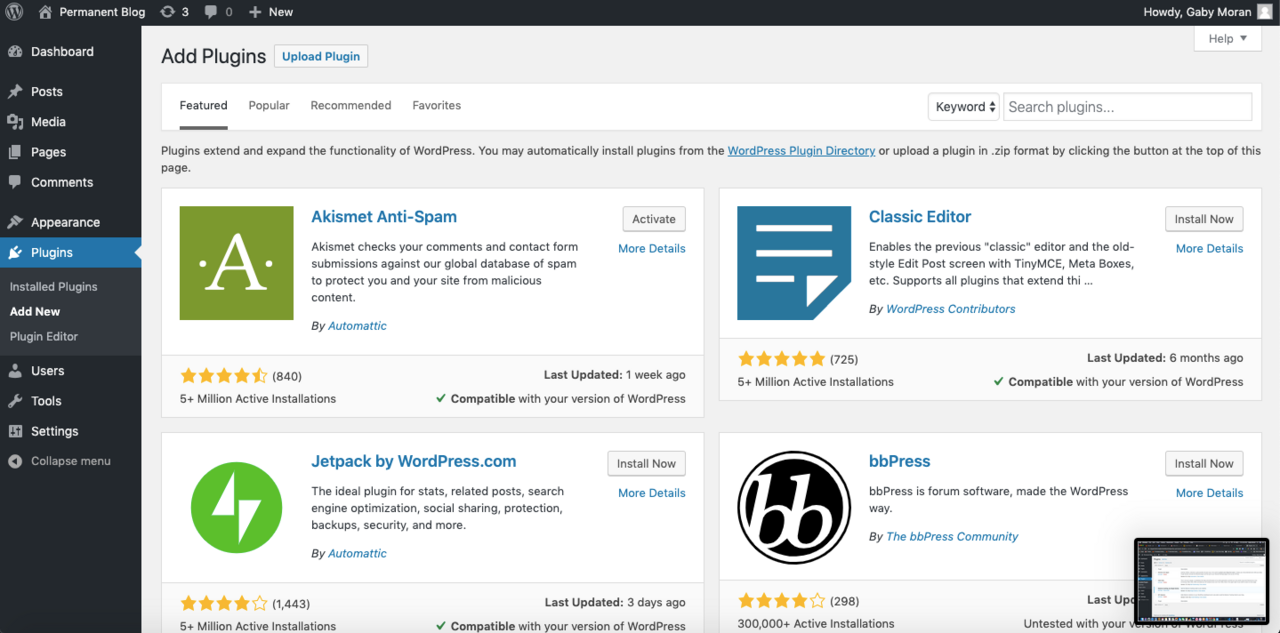
- Navigate to
Dashboard > Plugins > Add New. - Search for the caching plugin, click Install Now and then Activate.
- Follow the plugin setup wizard or manual configuration to enable page caching, browser caching, and minification of CSS/JS where appropriate.
- Limit WordPress Heartbeat API Activity:
- Heartbeat API by default sends frequent server requests, increasing CPU load particularly in the admin dashboard.
- Install Heartbeat Control plugin:
- In
Plugins > Add New, search for “Heartbeat Control”, install and activate. - Go to
Settings > Heartbeat Controland choose to Disable it completely in certain areas (like the dashboard) or reduce the frequency.
- Manage Bots and Spam Traffic:
- Install security plugins like Wordfence Security or WP Cerber to limit resource-draining unwanted bot visits.
- Configure firewall rules, enable IP blocking, and enable rate limiting features available.
- Alternatively, integrate Cloudflare with its WordPress plugin to block bad traffic at the network edge.
- Optimize Database and Clean Up:
- Use plugins like WP-Optimize to remove overhead, clean up post revisions, spam comments, and transient options.
- Schedule database optimizations carefully to avoid spikes in CPU usage during peak traffic.
- Disable or Replace Heavy Plugins:
- Identify high CPU usage plugins by deactivating them one by one and monitoring resource usage.
- Replace overly resource-intensive plugins with lighter alternatives or native WordPress features when possible.
Concrete Examples of Configuration
Configuring Heartbeat Control Plugin:
// After installing and activating:
// Go to Settings > Heartbeat Control
// Choose 'Disable Everywhere' or 'Allow only on post editor'
// Save changes
This reduces AJAX calls made every 15-60 seconds to keep sessions alive, drastically lowering CPU used by repeated requests.
Setting Up WP Rocket Caching:
- Enable Page Cache: Caches static versions of pages, cuts PHP processing.
- Enable Browser Cache: Reduces requests for repeated visitors.
- Minify CSS and JS: Decreases file sizes and requests.
- Enable Lazy Loading: Defers loading of images off-screen.
How to Verify Success
- Monitor Hosting Metrics: Check CPU usage graphs before and after plugin installations through cPanel, Plesk, or your hosting dashboard.
- Use Query Monitor Plugin: Identify heavy database queries or slow scripts that may still be consuming CPU.
- Load Testing: Run controlled load tests or monitor real traffic logs to see if the CPU spikes are reduced.
- Page Speed Tools: Though indirectly related, faster loading times often correlate with lower backend resource use. Use tools like GTmetrix or Google PageSpeed Insights.
Common Mistakes and How to Avoid Them
- Installing Too Many Plugins: Each plugin adds overhead, so limit the number to essential ones.
- Activating Multiple Caching Plugins: This can cause conflicts and increase server load. Use only one caching solution at a time.
- Neglecting Non-Plugin Factors: High CPU can also stem from themes, high traffic spikes, or poorly optimized external scripts.
- Not Testing Changes: Make incremental changes and monitor their effects rather than bulk changes that are harder to diagnose.
Alternative Strategies Beyond Plugins
- Upgrade Hosting Plan: If CPU limits are frequently reached, shared hosting may be insufficient – upgrading to VPS or managed WordPress hosting can help.
- Optimize Images: Compress and serve scaled images to reduce page weight and backend processing.
- Use a Content Delivery Network (CDN): Offloads static content delivery, reducing server CPU usage.
- Disable WordPress Features: For instance, turn off post revisions or unused widgets.
Short FAQ
Can a plugin alone solve high CPU usage on shared hosting?
Usually, a combination of plugins and optimization practices is necessary. Plugins targeting caching, heartbeat control, and spam reduction help, but server limits and theme efficiency also impact CPU load.
Is it safe to disable the WordPress Heartbeat API entirely?
Disabling Heartbeat reduces admin-ajax.php load but some features like autosave and real-time plugin notifications depend on it. It’s safer to limit frequency than disable completely, especially on active editing sites.
Will caching plugins work on all shared hosts?
Some caching plugins require certain server configurations (like LiteSpeed Cache requires LiteSpeed server). WP Rocket and others use PHP-level caching and are compatible with most environments.
How often should I optimize my database to reduce CPU usage?
Scheduling database optimization once a week or month is generally sufficient, but avoid running it during peak traffic to prevent CPU spikes.
Can bot traffic cause increased CPU usage?
Yes, uncontrolled bots and crawlers can generate many requests leading to high CPU load. Security plugins and firewall services can mitigate this.
Advanced Troubleshooting Techniques for CPU Usage Issues
When standard plugin solutions and optimizations don’t sufficiently reduce CPU usage, employing advanced troubleshooting can help diagnose deep-rooted issues causing high server load.
Enable and Analyze Debug Logs
- Enable WordPress debugging by adding the following lines to your
wp-config.phpfile:define('WP_DEBUG', true); define('WP_DEBUG_LOG', true); define('WP_DEBUG_DISPLAY', false); - This logs PHP errors and deprecated notices to
wp-content/debug.logwithout displaying them on the frontend. - Review the debug log for recurring errors or notices, especially fatal errors or warnings from plugins or themes causing excessive server resource consumption.
Use Query Monitor for Database Performance
- Install the Query Monitor plugin to identify slow-running or excessive database queries triggered by plugins or page requests.
- Look for queries with high execution durations or those that run repeatedly during page loads.
- Identify plugins creating inefficient queries and consider disabling or replacing them with optimized alternatives.
Test with Default Theme and Minimal Plugins
- Switch your active theme to a default WordPress theme like Twenty Twenty-Three.
- Deactivate all plugins except the caching and essential plugins.
- Monitor CPU usage for improvement.
- If CPU usage drops, reactivate plugins one by one, monitoring usage to identify the culprit(s).
Profiling with New Relic or Server-Side Tools
If your hosting supports it, consider using performance monitoring tools such as New Relic APM, which provide detailed analysis of PHP execution, database calls, and external requests.
This lets you pinpoint exactly which plugin hooks or scripts are consuming CPU time and causing bottlenecks.
Handling Edge Cases and Common Issues
High CPU Usage Caused by Cron Jobs
- WordPress uses wp-cron to run scheduled tasks, which trigger upon site visits and can cause CPU spikes if many scheduled events pile up.
- Disable the default wp-cron and replace it with a real server cron job that runs at set intervals to smooth CPU usage:
define('DISABLE_WP_CRON', true); - Set up a server cron to call wp-cron.php every 5-15 minutes:
wget -q -O - https://yourdomain.com/wp-cron.php?doing_wp_cron >/dev/null 2>&1
Bot Traffic and Crawl Traffic Adjustments
- Besides security plugins, configure
robots.txtto limit crawler access to resource-intensive URLs or admin paths. - Use Cloudflare or similar services to challenge or block abusive bots before they reach your server.
- Examine server logs to identify suspicious or repeated IP addresses sending excessive requests and block them using your firewall or security plugin.
Addressing AJAX and REST API Excessive Calls
- Some plugins or themes make heavy use of AJAX or WordPress REST API calls, increasing CPU usage.
- Use browser developer tools or plugins like Query Monitor to identify such calls.
- Configure or disable unnecessary features generating frequent background requests, such as live search, chat features, or notifications.
Verifying and Measuring Improvements Over Time
After implementing plugins and optimizations, continuous monitoring is crucial to ensure sustained CPU usage reduction.
Tools and Methods
- Hosting Dashboard Graphs: Review hourly/daily CPU usage charts offered by your hosting provider.
- Server Logs: Identify any abnormal spikes or errors correlating with changes.
- Analytics Tools: Monitor actual traffic trends to rule out increased visitor load as a cause for high CPU.
- Performance Benchmarks: Export data to compare pre- and post-optimization load times and server usage patterns.
FAQ Expansion: Additional Questions on CPU Reduction Plugins
What if the caching plugin causes conflicts or errors?
Conflicts can arise from misconfiguration or incompatibility with other plugins or server setups. Always review plugin documentation, clear all caches (browser, server, CDN) after changes, and test disabling other plugins to identify conflicts. Enable debug logs for error details.
Can optimizing images really affect CPU usage?
While image optimization mostly reduces bandwidth and client-side load, large unoptimized images increase server CPU on dynamic resizing and image processing. Using plugins that cache resized images or server tools like ImageMagick/Imagick with appropriate caching reduces server-side CPU.
Does using a CDN always reduce CPU usage?
A CDN offloads static file delivery (images, stylesheets, scripts) from your server, indirectly reducing CPU usage by decreasing requests reaching your web host. However, dynamic page generation CPU load depends on backend processing and is unaffected by CDN.
How to identify if a plugin is causing high CPU usage?
Besides Query Monitor and disabling plugins sequentially, you can use server process monitoring tools (if available) or consult your host for insights. Plugins that perform many database queries, external API calls, or frequent AJAX requests are typical CPU-intensive culprits.
Is limiting WordPress Heartbeat enough for busy admin dashboards?
Limiting Heartbeat activity greatly lowers CPU caused by admin-area AJAX calls, especially in large or multi-editor sites. However, combining this with caching, database cleaning, and bot control is important for holistic CPU reduction.


