
Direct Answer: How to Fix Common WordPress SSL Certificate Errors
To fix common SSL certificate errors in WordPress, first identify the error type (browser warning, mixed content, expired certificate, or misconfiguration). Verify your SSL certificate is correctly installed and valid for your domain, then configure WordPress to use HTTPS URLs consistently. This typically involves updating site URLs, forcing HTTPS redirects, and resolving mixed content issues by replacing HTTP links with HTTPS. Use tools like SSL Labs, browser developer tools, and WordPress plugins to diagnose and resolve these problems.
Prerequisites and Safety Checks Before Fixing SSL Issues
- Backup Your Website: Always create a full backup of your WordPress files and database before making SSL or configuration changes.
- Access to Hosting Control Panel or SSH: You may need to install or reissue your SSL certificate via your hosting platform.
- WordPress Admin Access: Needed to update settings or install plugins.
- Valid SSL Certificate: Ensure your SSL certificate is issued by a trusted Certificate Authority (CA) and linked to your exact domain, including subdomains if necessary.
- Understand Your Hosting Environment: Shared hosting, managed WordPress, or dedicated servers have different steps for SSL installation.
Step-by-Step Instructions to Fix Common SSL Certificate Errors in WordPress

1. Identify the Nature of the SSL Error
- Browser Warnings: Examples include “Your connection is not private,” “NET::ERR_CERT_COMMON_NAME_INVALID,” or “SSL certificate expired.”
- Mixed Content Warnings: Pages load partially without HTTPS, causing browsers to block insecure content.
- Redirect Loops or SSL Configuration Errors: Too many redirects or site not reachable via HTTPS.
2. Check SSL Certificate Installation
- Use tools such as SSL Labs SSL Test to analyze your domain’s certificate status.
- Confirm that the certificate is valid, not expired, and the domain matches the certificate’s common name (CN) or Subject Alternative Name (SAN).
- If using a hosting provider’s SSL service (e.g., Let’s Encrypt), ensure the certificate is active through the hosting control panel.
3. Force WordPress to Use HTTPS URLs
- In WordPress Admin Panel, navigate to Settings > General.
- Update the WordPress Address (URL) and Site Address (URL) fields to use
https://instead ofhttp://. - Save the changes.
4. Modify .htaccess or Server Configuration to Force HTTPS Redirects
- Apache Servers: Add the following in your
.htaccessfile in the WordPress root directory:
# Force HTTPS RedirectRewriteEngine OnRewriteCond %{HTTPS} offRewriteRule ^(.*)$ https://%{HTTP_HOST}/$1 [L,R=301]- Nginx Servers: Add the following in your site’s server block configuration:
server {listen 80;server_name yourdomain.com www.yourdomain.com;return 301 https://$host$request_uri;}5. Fix Mixed Content Issues
- Use plugins like Really Simple SSL or Better Search Replace to replace all occurrences of
http://URLs withhttps://URLs in site content. - Check hardcoded URLs in theme files and update them to HTTPS.
- Inspect external resources (images, scripts, stylesheets) to ensure they are served over HTTPS.
6. Clear Caches
- Clear any caching plugins in WordPress (e.g., WP Super Cache, W3 Total Cache).
- Clear your browser’s cache and test again.
- If using a CDN (Content Delivery Network), purge the CDN cache.
7. Verify Your SSL Setup
- Visit your site using
https://and ensure no warnings appear. - Inspect the browser’s address bar for the padlock icon.
- Use browser developer tools (Console tab) to check for mixed content warnings.
Common Mistakes to Avoid When Fixing SSL Errors
- Failing to update WordPress site URLs after installing SSL, leading to redirect loops or mixed content warnings.
- Not renewing your SSL certificate on time, causing browsers to show expired certificate errors.
- Installing SSL certificates for the wrong domain or missing subdomains, resulting in mismatched common name errors.
- Ignoring mixed content by leaving HTTP resources on HTTPS pages, leading to browser warnings and blocked elements.
- Not clearing caches after changes, causing users to see outdated or broken content.
Useful Alternative Methods and Tools
- Use a WordPress SSL Plugin: Plugins such as Really Simple SSL automate SSL configuration, including URL rewriting and redirect settings.
- Obtain a Free SSL Certificate: Providers like Let’s Encrypt offer free certificates that many hosts support with auto-renewal.
- Command Line Tools: For advanced users, tools like
certbotcan manage SSL certificate requests, renewals, and installation on many servers. - Contact Hosting Support: If unsure, your hosting provider often can assist in installing and troubleshooting SSL certificates.
How to Verify Success After Fixing SSL Issues
- Open your website URL with
https://prefix in multiple browsers (Chrome, Firefox, Edge). - Look for the padlock icon or “Secure” label in the address bar.
- Check the browser console for any mixed content or SSL-related errors.
- Run an online SSL checker (such as SSL Labs) to confirm proper certificate chain and no warnings.
- Test forms, login pages, and interactive elements to ensure they function securely over HTTPS.
Short FAQ
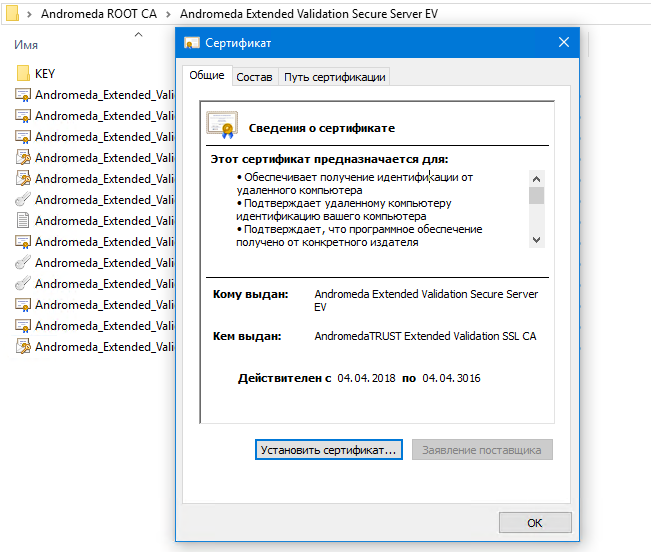
Q: What causes “NET::ERR_CERT_COMMON_NAME_INVALID” errors?
This error indicates the SSL certificate’s domain name does not match the URL you are visiting. Check that the SSL certificate covers all domain variants you use (e.g., with/without www).
Q: Can I use a free SSL certificate for my WordPress site?
Yes, Let’s Encrypt offers free SSL certificates compatible with most hosting providers and WordPress setups.
Q: Why do I see mixed content warnings after installing SSL?
This occurs when some resources (images, scripts) are still loaded via HTTP URLs, which modern browsers block on HTTPS pages. Replace all internal URLs with HTTPS.
Q: How often should I renew my SSL certificate?
SSL certificates typically expire every 90 days to 2 years depending on the provider. Set reminders to renew before expiry.
Q: Will installing an SSL certificate affect my website SEO?
Using HTTPS is beneficial for SEO as search engines prefer secure sites, but ensure proper redirects to avoid duplicate content issues.
Troubleshooting Edge Cases in WordPress SSL Certificate Issues
1. SSL Certificate Appears Valid but Shows Warnings
Sometimes, even with an apparently valid SSL certificate installed, browsers may display warnings or errors. This can result from:
- Incomplete Certificate Chain: The certificate chain must include all intermediate certificates linking your certificate to a trusted root certificate authority. Missing intermediate certificates can cause trust issues.
- How to Fix: Use online SSL checkers like SSL Labs to verify the certificate chain completeness. Download the required intermediate certificates from your CA and install them via your hosting control panel or server configuration.
2. SSL Certificate Covers “www” but Not Non-www Site (or Vice Versa)
A common cause of domain mismatch errors arises when the certificate only covers one domain variation (e.g., example.com vs www.example.com).
- How to Fix: You can obtain a multi-domain or wildcard SSL certificate that covers both variations. Alternatively, set a consistent redirect from one domain form to the other in your server or .htaccess to avoid SSL mismatch issues.
3. Self-Signed Certificates Causing Browser Trust Errors
Using self-signed certificates will trigger browser warnings since they’re not issued by a trusted certificate authority.
- How to Fix: Replace self-signed certificates with ones issued by a trusted CA such as Let’s Encrypt, which provides free certificates trusted by all major browsers.
4. SSL Errors After Migrating WordPress to a New Domain or Server
Migrating your site can cause SSL certificate issues if the new server doesn’t have the correct certificates installed or DNS hasn’t fully propagated.
- How to Fix: Confirm the SSL certificate is installed and configured on the new server. Wait for DNS propagation if recently updated. Reconfigure WordPress URLs if necessary.
5. Certificate Revocation and Browser Caching Issues
If a certificate was recently renewed or revoked, browsers may cache old certificates leading to errors.
- How to Fix: Clear your browser cache and SSL state. Use tools like
opensslto check the currently served certificate. Restart server services if necessary to reload the certificate.
Advanced Steps for SSL Configuration in WordPress
1. Enforce HSTS (HTTP Strict Transport Security)
HSTS tells browsers to only access the site via HTTPS for an interval, improving security and performance.
- How to Enable: Add the following header in your server configuration or .htaccess file:
Header always set Strict-Transport-Security "max-age=31536000; includeSubDomains; preload"<
Note: Enabling HSTS is recommended after confirming your HTTPS configuration is stable to avoid site inaccessibility.
2. Use Content Security Policy (CSP) to Prevent Mixed Content
A properly configured CSP can block HTTP resources, preventing mixed content warnings.
- Example Header:
Content-Security-Policy: upgrade-insecure-requests;This forces browsers to upgrade all HTTP requests to HTTPS automatically.
3. Configure SSL in wp-config.php
To force SSL for admin and login pages, add the following lines to your wp-config.php file:
define('FORCE_SSL_ADMIN', true);This enhances security by ensuring sensitive pages always load over HTTPS.
Additional Verification Steps After Fixing SSL Errors
1. Use Multiple SSL Testing Tools
Beyond SSL Labs, tools like Why No Padlock help diagnose mixed content and insecure items specifically.
2. Test from Different Networks and Devices
Sometimes, local network or device configurations cause SSL problems. Test your website from external networks, mobile devices, and different browsers to confirm consistent behavior.
3. Verify Redirects with curl
Use the command line to inspect redirects and headers:
curl -I http://yourdomain.com
curl -I https://yourdomain.com
Ensure HTTP redirects to HTTPS with a 301 status code.
FAQ: Additional Common Questions About WordPress SSL Errors
Q: Why is my WordPress admin page not loading over HTTPS after installing SSL?
This may happen if the URLs in WordPress settings still use HTTP or if some plugins or themes force non-secure connections. Verify site URLs in Settings > General and add define('FORCE_SSL_ADMIN', true); in wp-config.php.
Q: Can I fix SSL errors by only installing a plugin?
Plugins like Really Simple SSL can simplify configuration but do not replace having a valid certificate installed on the server. Always ensure your SSL certificate is correctly issued and installed first.
Q: How do I fix mixed content in CSS, JavaScript, or images from external sources?
If external sources do not support HTTPS, consider:
- Replacing resources with alternatives that support HTTPS.
- Hosting assets locally with HTTPS support.
- Using protocol-relative URLs (beginning with
//) only if the external server supports HTTPS.
Q: What if my hosting provider does not support SSL installation?
Consider migrating your WordPress site to a hosting provider that supports SSL/TLS certificates or request them to enable SSL support. Most providers now support free SSLs like Let’s Encrypt.
Q: Why do I get a “Too Many Redirects” error after forcing HTTPS?
This typically means there is a redirect loop caused by incorrect server or WordPress settings. Common causes include:
- Forcing HTTPS both in .htaccess and through a plugin simultaneously.
- Mismatched site URL settings with the SSL configuration.
Review and streamline your redirects to prevent loops.


