
Affiliate disclosure: this post contains a referral link; we may earn a commission from qualifying purchases.
Direct Answer: How VPNs Secure Remote WordPress Management
Using a VPN (Virtual Private Network) effectively allows developers and site managers to securely access and manage WordPress sites from any location by encrypting their internet connection and masking their IP address. This reduces risks related to data interception, unauthorized access, and compromised credentials during remote administration.
Prerequisites and Safety Checks Before Using a VPN for WordPress Management
- Reliable VPN Service: Choose a reputable VPN provider with a strict no-logs policy and strong encryption (AES-256 or better). Avoid free VPNs that may log or sell your data.
- Secure WordPress Setup: Ensure your WordPress installation is up to date including core, plugins, and themes to minimize vulnerabilities.
- Strong Authentication: Use robust passwords and enable two-factor authentication (2FA) for WordPress admin accounts.
- Backup WordPress Site: Regularly back up the entire WordPress site including database and files before enabling VPN remote access.
- Understand Your Network: Know your home or office IP and ensure firewalls are configured to allow VPN traffic securely.
Step-by-Step Guide to Use a VPN for Secure Remote WordPress Management
- Select and Subscribe to a VPN Service:
- Look for VPNs with strong privacy certifications, fast servers, and multiple geographic locations.
- Set up the VPN client application on your editing or development device (laptop, PC, smartphone).
- Connect to a VPN Server:
- Open the VPN client and log in with your credentials.
- Choose a server location geographically close to your WordPress hosting provider for better speed.
- Connect and verify your IP address changes through services like
whatismyipaddress.com.
- Configure WordPress for VPN-Only Access (Optional but Secure):
- Restrict WordPress admin panel access by IP whitelist in your web server or firewall configuration, allowing only VPN-assigned IPs.
- Use plugins like “WP Limit Login Attempts” to tighten login security during remote sessions.
- Log Into WordPress Dashboard Over VPN:
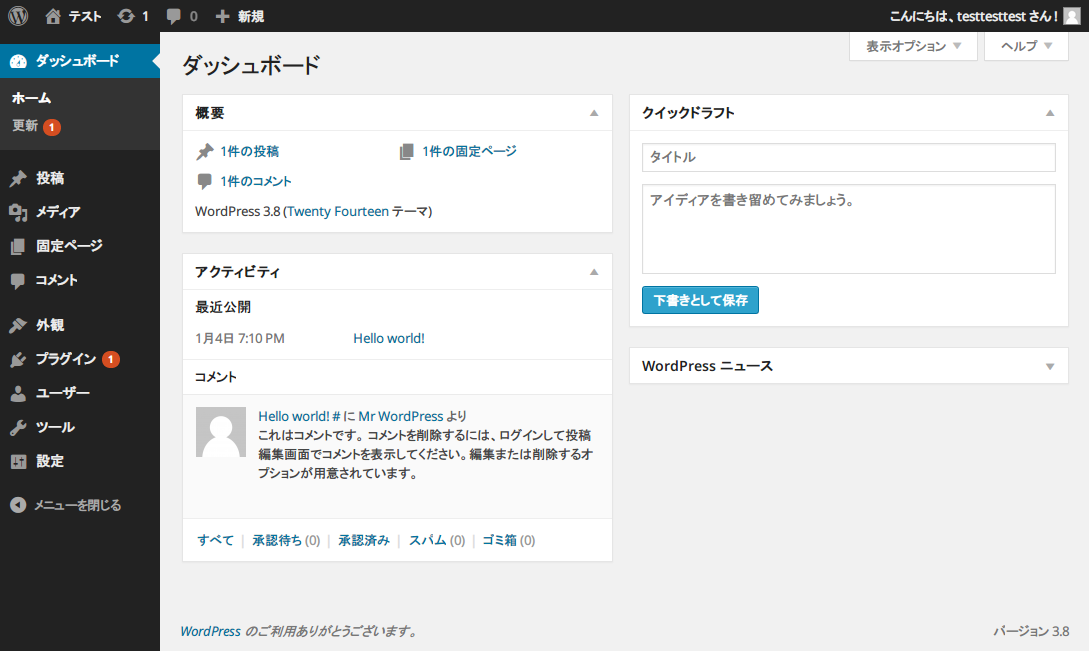
- Access your WordPress admin URL (
yourdomain.com/wp-admin). - Log in with your credentials and enjoy encrypted communication via the VPN connection.
- Access your WordPress admin URL (
- Manage and Update Your Site Safely:
- Perform updates, edits, or configurations knowing your data traffic is encrypted and your location obscured.
- If using FTP or SFTP, configure these connections to also use VPN protection or secured tunnels.
- Disconnect VPN After Your Work Session:
- To avoid unnecessary bandwidth usage and reduce risk, disconnect when finished.
Concrete Example: Securing a Client WordPress Site
Imagine you are managing a client’s e-commerce WordPress site remotely. You:
Related Code Crushers articles
- Subscribe to a top-rated VPN service like NordVPN or ExpressVPN.
- Connect to a VPN server near the hosting location.
- Access the WordPress admin dashboard through the VPN connection.
- Have configured the hosting firewall to only accept admin access from your VPN IP range.
- Make plugin updates and check for security warnings safely over this encrypted link.
Verifying Success: How to Ensure Your VPN Secures WordPress Management
- Check Your IP Address: Visit
https://whatismyipaddress.com/before and after connecting your VPN. It should change accordingly. - Access Control: Try logging into WordPress admin from a different network without VPN – it should be blocked if IP restrictions are set.
- Monitor Bandwidth and Logs: Some VPN clients display traffic to confirm encryption activity during sessions.
- Confirm SSL Usage: Confirm that WordPress admin URLs are accessed via HTTPS. VPN does not replace HTTPS but complements it.
Common Mistakes and How to Avoid Them
- Using Free or Untrusted VPNs: May leak data or keep logs. Always opt for paid, reputable providers.
- Ignoring Two-Factor Authentication: VPN protects the connection but 2FA protects your WordPress account.
- Skipping Backups Before Remote Changes: Always backup before extensive updates or configurations.
- Not Restricting IPs to VPN Addresses: Without firewall or plugin restrictions, VPN use alone may not block attackers.
- Using Public Wi-Fi Without VPN: Avoid managing WordPress over unsecured networks without VPN active.
Alternatives and Complimentary Security Practices
- SSH Tunneling: For advanced users, creating SSH tunnels can also encrypt connections to servers.
- WordPress Security Plugins: Plugins like Wordfence or iThemes Security add another layer of defense.
- VPN on Router Level: Set VPN on your home or office router to secure all device connections inherently.
- Use Management Tools: Services like ManageWP or MainWP provide controlled, centralized administration with added security options.
FAQs
- Is a VPN mandatory for remote WordPress administration?
- No, but it greatly enhances security by encrypting traffic and masking your IP, especially when using public or untrusted networks.
- Will using a VPN slow down my WordPress management?
- Minimal speed impact may occur due to encryption overhead, but choosing a nearby server usually balances performance and security well.
- Can VPNs fully protect WordPress from hacking?
- VPNs protect the connection but do not eliminate risks like weak passwords, vulnerable plugins, or core issues. Use VPN alongside other security measures.
- Should I configure WordPress to accept admin logins only from VPN IP addresses?
- If feasible, yes. IP whitelisting adds an excellent extra security layer by blocking unauthorized requests.
- Is it safe to leave the VPN always on?
- Continuous VPN use is secure, but be aware of potential performance trade-offs and VPN provider trustworthiness.
Summary
For developers and site managers, implementing a VPN for remote WordPress site management is a practical step to enhance security by safeguarding data and access credentials. Combine VPN use with strong authentication methods, proper site backups, and backend restrictions to maintain a robust defense against cyber threats. Avoid common pitfalls such as using untrusted free VPNs or neglecting site updates. By following this guide, you can confidently manage WordPress sites remotely without compromising security.
Troubleshooting Common VPN Issues in WordPress Management
While using a VPN for secure remote WordPress management significantly enhances security, users may encounter some common issues. Here is a guide to troubleshooting these problems effectively.
- VPN Connection Drops Frequently: Check your internet stability and switch to a VPN server with lower latency. Reinstall or update your VPN client to fix bugs.
- WordPress Admin Panel Not Accessible Through VPN:
- Verify the IP whitelist rules on your server or firewall; ensure your current VPN-assigned IP is included.
- Clear browser cache and cookies to prevent session confusion.
- Restart the VPN connection and try again.
- Slow VPN Speed Affecting WordPress Performance:
- Select a VPN server geographically closer to your hosting server.
- Disable unnecessary VPN features like double-hop or obfuscation if not required.
- Limit bandwidth-heavy background applications on your device.
- Two-Factor Authentication (2FA) Not Working Over VPN:
- Ensure your VPN IP address is not blocked by your 2FA app or plugin.
- Update 2FA plugins and apps to the latest version to maintain compatibility.
- FTP/SFTP Not Connecting When VPN Is Active:
- Confirm your FTP server allows connections from VPN IP ranges.
- Use explicit FTP over TLS if implicit is blocked.
- Check firewall and router configurations to permit VPN traffic.
Verification Checklist: Confirming VPN Security in Remote WordPress Access
Before concluding a remote session or policy setup, verify these points to ensure your WordPress management via VPN remains protected:
| Verification Step | How to Check | Expected Outcome |
|---|---|---|
| VPN Connection Status | Check VPN client UI or system network icon | Shows “Connected” with selected server location |
| IP Address Altered | Visit https://whatismyipaddress.com/ before and after connecting VPN | Displayed IP matches VPN server location, different from actual IP |
| WordPress Access Limited to VPN IPs | Try logging in from a non-VPN network or incognito browser | Should be denied access or receive error message |
| Encrypted Communication Confirmed | Look for “HTTPS” and padlock icon in WordPress admin URL bar | Active SSL certificate with no warnings |
| 2FA Functionality | Perform a login requiring two-factor authentication | Receives expected authentication prompt and acceptance |
Advanced VPN Usage Techniques for WordPress Management
For users seeking enhanced security and control, the following advanced VPN setups can offer greater protection and convenience:
Using Split Tunneling
Some VPN clients offer split tunneling, which allows only certain applications or domains to use the VPN while the rest of your traffic routes normally.
- Configure your VPN client to route WordPress admin URLs through the VPN while keeping other internet activities direct. This reduces overall network latency.
- Watch for data leaks where some traffic might bypass the VPN unintentionally.
VPN Chaining for Double Encryption
Double VPN or VPN chaining routes your connection through two servers, encrypting data twice for added privacy. This can be setup via:
- Using multi-hop VPN features supplied by some providers.
- Manually connecting through two separate VPNs in series.
While this bolsters anonymity, expect increased latency which may impact WordPress management responsiveness.
Implementing VPN Kill Switch
A kill switch automatically disconnects your internet if the VPN drops unexpectedly. This blocks potential exposure of your actual IP and unencrypted traffic.
- Enable this feature in your VPN client settings for remote WordPress administration.
- Test by intentionally disconnecting the VPN to verify internet shutdown.
Additional FAQs on Practical VPN Uses for WordPress
- Can I manage multiple WordPress sites via the same VPN?
- Yes, a single VPN connection can provide secure access to multiple WordPress installations, especially if hosted on the same server or network.
- Should I use a dedicated IP VPN for WordPress management?
- A dedicated IP limits access to a fixed address, simplifying IP whitelisting and increasing security by preventing dynamic IP changes that might cause lockouts.
- Is VPN necessary if I use a managed WordPress hosting service?
- While managed hosting often includes security features, VPN use adds an additional secure layer for remote admin sessions, especially on public networks.
- How often should I update my VPN client?
- Regularly check for and install VPN updates promptly to benefit from security patches and functionality improvements.
- Can VPNs interfere with WordPress performance monitoring tools?
- Some VPNs might obscure IP data that monitoring tools analyze; configure tools to account for VPN IP ranges if needed.
Related service
If you are considering Relevant privacy, VPN, and public-Wi-Fi safety discussions, you can review NordVPN privacy and VPN service. Compare features, pricing and suitability before deciding.


